
Censor Image Online Free — Blur, Pixelate, or Black Bar Specific Areas
Censor selected parts of an image online for free with our image censoring tool — no signup required. Draw rectangles or ellipses over faces, license plates, or sensitive areas, then apply pixelate, blur, solid color, or black bar effects. Multi-region support, restore mode, undo, and format-preserving download. 100% in your browser — nothing uploaded.
Upload an image to censor
Drag and drop a JPG, PNG, or WEBP file, click to browse, or paste from clipboard. Everything is processed in your browser.
Censor Image Online — Free Photo Censoring Tool
Our censor image tool lets you hide sensitive areas in any photo by drawing rectangles or ellipses over faces, license plates, or private information. Choose from pixelate, blur, solid color, or black bar effects. Everything runs in your browser — your images are never uploaded.
Area-Selective Censoring
Draw rectangles or ellipses directly on the image to censor only the areas you choose. Apply multiple regions at once with different effects.
Five Censor Modes
Choose pixelate for mosaic blocks, blur for soft obscuring, solid color for full coverage, or black bar for classic censorship strips. Use restore to erase a censored area without starting over.
Real-Time Preview
See censor effects applied instantly as you draw. Adjust intensity with the slider and watch the result update in real time before downloading.
100% Private
All processing happens in your browser. Your images are never uploaded to any server — complete privacy when censoring sensitive photos.
Format-Preserving Download
Download your censored image in the same format as the original — JPG stays JPG, PNG stays PNG with transparency preserved, WEBP stays WEBP.
Works on Any Device
Censor image online on desktop, tablet, or phone. Touch-friendly drawing lets you censor photos anywhere you need.
Why Use Our Image Censoring Tool?
Whether you need to hide faces for privacy, cover license plates, or censor sensitive content before sharing, our tool gives you full control. Need to apply effects to the entire image instead? Try our pixelate image tool for whole-image pixelation, or blur image tool for full-image blur effects.
- ✓Draw multiple censor regions on a single image
- ✓Five modes: pixelate, blur, solid color, black bar, restore
- ✓Rectangle and ellipse shapes for precise coverage
- ✓Undo individual regions or reset all at once
- ✓Free with no watermarks — unlimited usage
- ✓Supports JPG, PNG, and WEBP formats
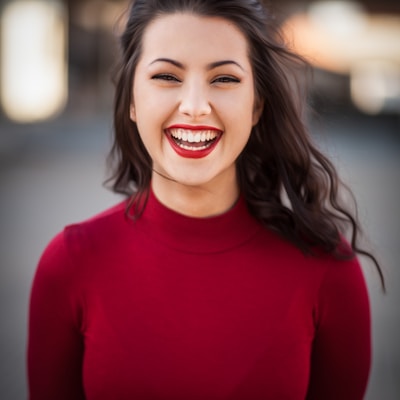
Draw & Censor — Precise Area Selection
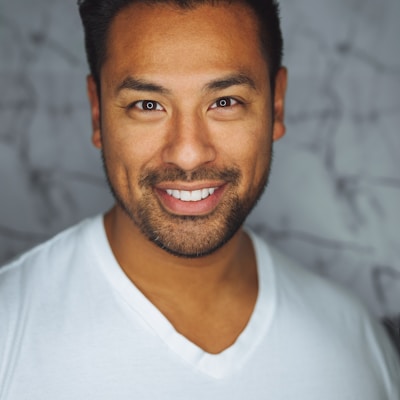
Multi-Region Support with Full Undo
Frequently Asked Questions About Censor Image Tool
Learn how to censor image online, blur or pixelate parts of photos, and use our image censoring tool effectively.
How do I censor an image online for free?
Upload your image to our censor image tool by dragging and dropping, clicking to browse, or pasting from your clipboard. Then draw a rectangle or ellipse over the area you want to censor. Choose your preferred censor mode — pixelate, blur, solid color, black bar, or restore — and adjust the intensity. Download your censored image instantly. Everything is free, no signup required.
How do I add a censor bar to a picture?
Select the "Black Bar" mode in the censor tool controls, then draw a rectangle over the area you want to cover. The tool will place a solid black bar across the selected region — the classic censorship strip. You can draw multiple bars on different parts of the image. This is perfect for covering eyes, text, or other sensitive information.
Can I pixelate just part of an image without affecting the rest?
Yes! That's exactly what our censor image tool is designed for. Unlike our whole-image pixelate tool, this tool lets you draw specific areas to pixelate while leaving the rest of the image untouched. Draw a rectangle or ellipse over a face, license plate, or any sensitive area, and only that region will be pixelated.
Can I censor multiple areas in one image?
Absolutely! Our tool supports multi-region censoring. Draw as many censor regions as you need — each with its own mode and intensity. For example, you could pixelate one face, blur another, and add a black bar over a license plate, all in the same image. Each region can be individually deleted or undone.
Should I use Censor Image or Pixelate Image?
Use Censor Image when you only need to hide specific parts of a photo, like faces, IDs, or plates. Use Pixelate Image when you want to pixelate the entire image in one click. Censor Image is area-selective; Pixelate Image is full-image.
What's the difference between pixelating and blurring for censoring?
Pixelating replaces the selected area with blocky mosaic squares, making it impossible to identify details. Blurring applies a gaussian blur that softens the area into a smudgy, unrecognizable version. Pixelation is more commonly associated with censorship in media, while blur tends to look more natural. Both are equally effective at hiding content — choose based on your aesthetic preference.
Is my image uploaded to a server when I censor it?
No! All image processing happens 100% in your browser using the Canvas API. Your images never leave your device — they are never transmitted, stored, or processed on any server. This makes our censor tool completely private and secure, even for sensitive or confidential images.
What file formats can I censor? (JPG, PNG, WEBP)
Our censor image tool supports JPG, PNG, and WEBP formats. When you download, the tool preserves your original format — a JPG stays a JPG, a PNG stays a PNG with transparency intact, and a WEBP stays a WEBP. No unwanted format conversion.
Can I undo a censor effect after applying it?
Yes! Our tool provides full undo support. Click the "Undo" button to remove the most recently drawn region, or delete any specific region from the region list. You can also click "Reset All" to remove all censor effects and restore the original image. No need to re-upload.
How do I censor faces in a photo?
Upload your photo, select either the Pixelate or Blur mode, and draw a rectangle or ellipse over each face you want to censor. For round faces, the ellipse shape often provides a cleaner result. Adjust the intensity slider to ensure the face is completely unrecognizable. You can censor multiple faces in a single image.
Censor Image Online Free - Start Now
Protect privacy by censoring selected parts of your photos. Draw regions, then pixelate, blur, black bar, or restore — all in your browser with no signup needed.
Also Try Our Other Image Tools
Explore our collection of free, easy-to-use image editing tools. No signup required, instant results!
Image Inverter
Invert colors for creative photo effects
Color Inverter
Reverse complementary colors in any image
Invert PNG Colors
Invert PNG while preserving transparency
Invert JPG Colors
Create photo negatives from any JPG image
Invert WebP Colors
Invert modern WebP images with alpha support
Invert Color (Hex)
Find the opposite of any hex color instantly
Flip Image
Mirror images horizontally or vertically
Embroidery Pattern Prep
Prepare patterns for tracing and transfers
Darken Image
Adjust brightness to create moody effects
Lighten Image
Brighten photos and enhance visibility
Image Brightness
Adjust photo brightness from -100 to +100
Image Saturation
Saturate or desaturate colors instantly
Split Image
Create grid splits for social media posts
Circle Crop
Create perfect circular images for avatars
Grayscale Image
Convert photos to beautiful grayscale
Black & White Filter
Apply professional B&W photo effects
Blur Image
Add blur effects for privacy or style
Pixelate Image
Create pixel art and mosaic effects
Dither Image
Apply retro dithering with 2-64 color control
Sepia Filter
Add warm vintage sepia tones to photos
Negative Image
Create film-style photo negative effects
Film Negative to Positive
Restore positive photos from scanned film negatives
Dark Mode Image
Adapt screenshots and logos for dark backgrounds
Image Contrast
Adjust and increase photo contrast
Vignette Effect
Add edge shading with custom color control
Image Resolution Converter
Change image dimensions by exact pixels
Add Noise to Image
Apply grain and film noise with fine control
Posterize Image
Apply posterization effect with level control
Solarize Image
Create partial negative effects by threshold
Duotone Effect
Map shadows and highlights to two colors
Halftone Effect
Create print-style dot pattern images
Hue Changer
Shift image hue from -180° to +180°
Threshold Image
Convert to pure black & white by threshold
Color Swap Image
Replace specific colors with tolerance
Image Color Picker
Pick colors from any image pixel
Sharpen Image
Enhance photo clarity and fix soft focus
Emboss Image
Add raised or engraved relief effects