
Embroidery Pattern Inverter for Dark Fabric
Upload a pattern and apply a true RGB color inversion for dark fabric tracing. Open it fullscreen, optionally clean a scanned background, or prepare a horizontally mirrored version for compatible iron-on transfers.
Upload your embroidery pattern
Drop, paste, or choose a scanned pattern or PNG line drawing. Processing stays in your browser.
JPG, PNG, or WebP · Maximum 15 MB · Paste with Ctrl/⌘ + V
What Is an Embroidery Pattern Inverter?
An embroidery pattern inverter reverses every image color so a light paper background becomes dark and dark pattern marks become bright enough to trace through dark fabric. If the source is a noisy scan, optional cleanup can separate the lines from the paper. Mirroring remains a separate control for transfer methods that require a reversed print.
Dark Fabric Tracing
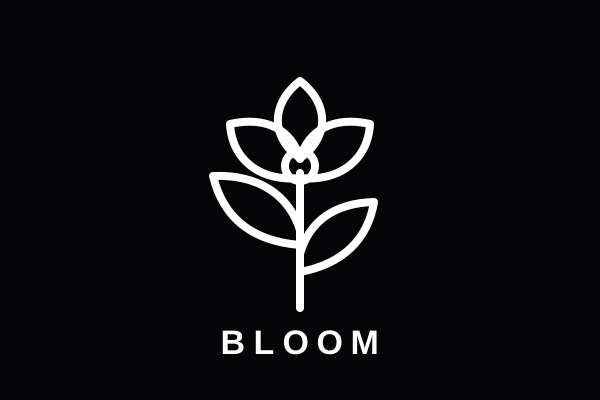
Convert dark pattern marks into bright white lines on black so they are easier to see through dark cloth.
Optional Scan Cleanup
Turn on threshold cleanup only when gray paper tones or scan noise need to become pure line art.
Transfer Mirroring
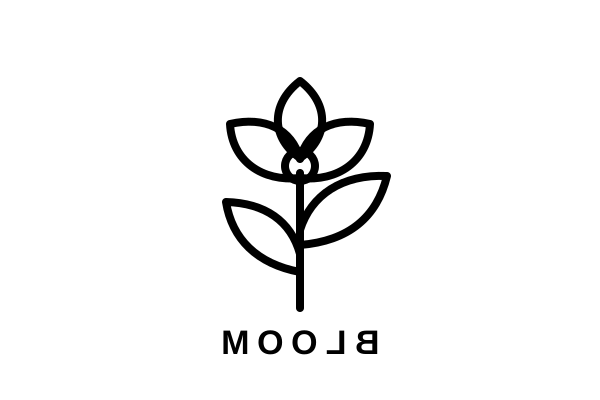
Flip text and asymmetrical motifs horizontally for transfer materials that are applied design-side down.
Flexible Backgrounds
Choose black, white, or transparent output without making the line color disappear into the background.
Private Processing
Pattern cleanup and mirroring run locally in your browser, so personal designs are not uploaded.
Fullscreen Tracing
Open the white-on-black pattern fullscreen on a tablet or monitor and trace it directly through dark fabric.
Choose the Workflow, Then Fine-Tune
Start with Invert for Dark Fabric for exact color reversal. If the scan contains gray paper texture, turn on Clean scanned pattern or adjust the cutoff with the dedicated threshold tool. For other horizontal or vertical reflections, use the flip image tool.
- +Use white lines on black when tracing through dark fabric with a screen or lightbox
- +Use manual threshold when faint pencil lines disappear or paper shadows remain
- +Choose transparent PNG when placing the pattern over different preview colors
- +Mirror text only when the transfer material instructions require a reversed print
- +Print a plain-paper test before using a transfer sheet
Trace Embroidery Patterns on Dark Fabric
Mirror Text and Asymmetrical Motifs
Optionally Clean Scanned Patterns
Choose a Solid or Transparent Background
Embroidery Pattern Transfer Tool FAQ
Answers about cleaning, inverting, mirroring, and printing embroidery transfer patterns.
How do I transfer an embroidery pattern to dark fabric?
Upload the pattern and choose Invert for Dark Fabric. The tool reverses every RGB color, so a white background becomes black and dark marks become bright. Choose Open Fullscreen for Tracing, place the dark fabric over the screen or lightbox, and trace the result.
Does this use a real image inverter?
Yes. Invert for Dark Fabric applies exact RGB inversion: each red, green, and blue value becomes 255 minus its original value. It preserves the image alpha channel and tonal detail. Scan cleanup is a separate optional setting.
Should I mirror an embroidery pattern before an iron-on transfer?
Mirror the pattern when your transfer material is printed and applied design-side down. Some dark-fabric transfer papers are applied design-side up and should not be mirrored, so always check the instructions supplied with your material.
Can I make the pattern background transparent?
Yes. Open Adjust Result, turn on Clean scanned pattern, and choose Transparent as the background. Download PNG or WebP to preserve transparency; JPG output is placed on white because JPG does not support transparent pixels.
What does automatic threshold do?
It is an optional scan-cleanup mode. Turn on Clean scanned pattern to separate dark pattern marks from lighter paper with an automatically selected cutoff. Switch to Manual if faint lines need a different cutoff.
Are my embroidery designs uploaded or stored?
No. Pattern cleanup, color mapping, and mirroring run locally in your browser with the Canvas API. Your image does not need to leave your device.
Prepare Your Embroidery Pattern
Create clean line art for dark-fabric tracing or a mirrored transfer in one browser-based workflow.
Also Try Our Other Image Tools
Explore our collection of free, easy-to-use image editing tools. No signup required, instant results!
Image Inverter
Invert colors for creative photo effects
Color Inverter
Reverse complementary colors in any image
Invert PNG Colors
Invert PNG while preserving transparency
Invert JPG Colors
Create photo negatives from any JPG image
Invert WebP Colors
Invert modern WebP images with alpha support
Invert Color (Hex)
Find the opposite of any hex color instantly
Flip Image
Mirror images horizontally or vertically
Darken Image
Adjust brightness to create moody effects
Lighten Image
Brighten photos and enhance visibility
Image Brightness
Adjust photo brightness from -100 to +100
Image Saturation
Saturate or desaturate colors instantly
Split Image
Create grid splits for social media posts
Circle Crop
Create perfect circular images for avatars
Grayscale Image
Convert photos to beautiful grayscale
Black & White Filter
Apply professional B&W photo effects
Blur Image
Add blur effects for privacy or style
Pixelate Image
Create pixel art and mosaic effects
Dither Image
Apply retro dithering with 2-64 color control
Sepia Filter
Add warm vintage sepia tones to photos
Negative Image
Create film-style photo negative effects
Film Negative to Positive
Restore positive photos from scanned film negatives
Dark Mode Image
Adapt screenshots and logos for dark backgrounds
Image Contrast
Adjust and increase photo contrast
Vignette Effect
Add edge shading with custom color control
Image Resolution Converter
Change image dimensions by exact pixels
Add Noise to Image
Apply grain and film noise with fine control
Posterize Image
Apply posterization effect with level control
Solarize Image
Create partial negative effects by threshold
Duotone Effect
Map shadows and highlights to two colors
Halftone Effect
Create print-style dot pattern images
Hue Changer
Shift image hue from -180° to +180°
Threshold Image
Convert to pure black & white by threshold
Color Swap Image
Replace specific colors with tolerance
Image Color Picker
Pick colors from any image pixel
Sharpen Image
Enhance photo clarity and fix soft focus
Emboss Image
Add raised or engraved relief effects