
Dark Mode Image Converter
Convert bright logos, screenshots, diagrams, and UI graphics into a dark mode image while retaining their original hues. Adjust contrast and saturation, preserve transparency, and process every pixel privately in your browser.
Drop a light-mode image here
Convert JPG, PNG, or WebP screenshots and graphics for dark backgrounds.
Local browser processing keeps your image private.
What Is a Dark Mode Image Converter?
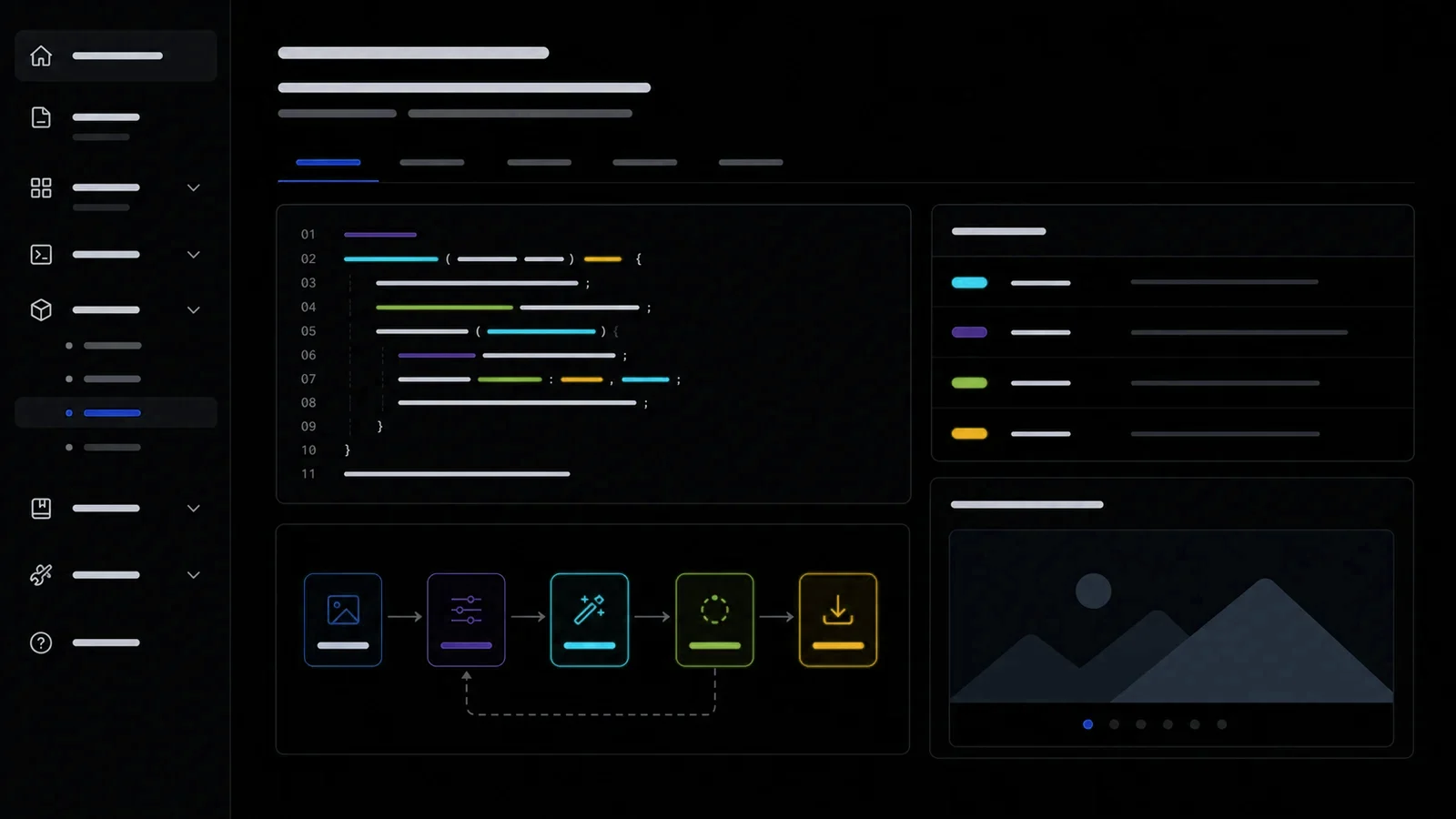
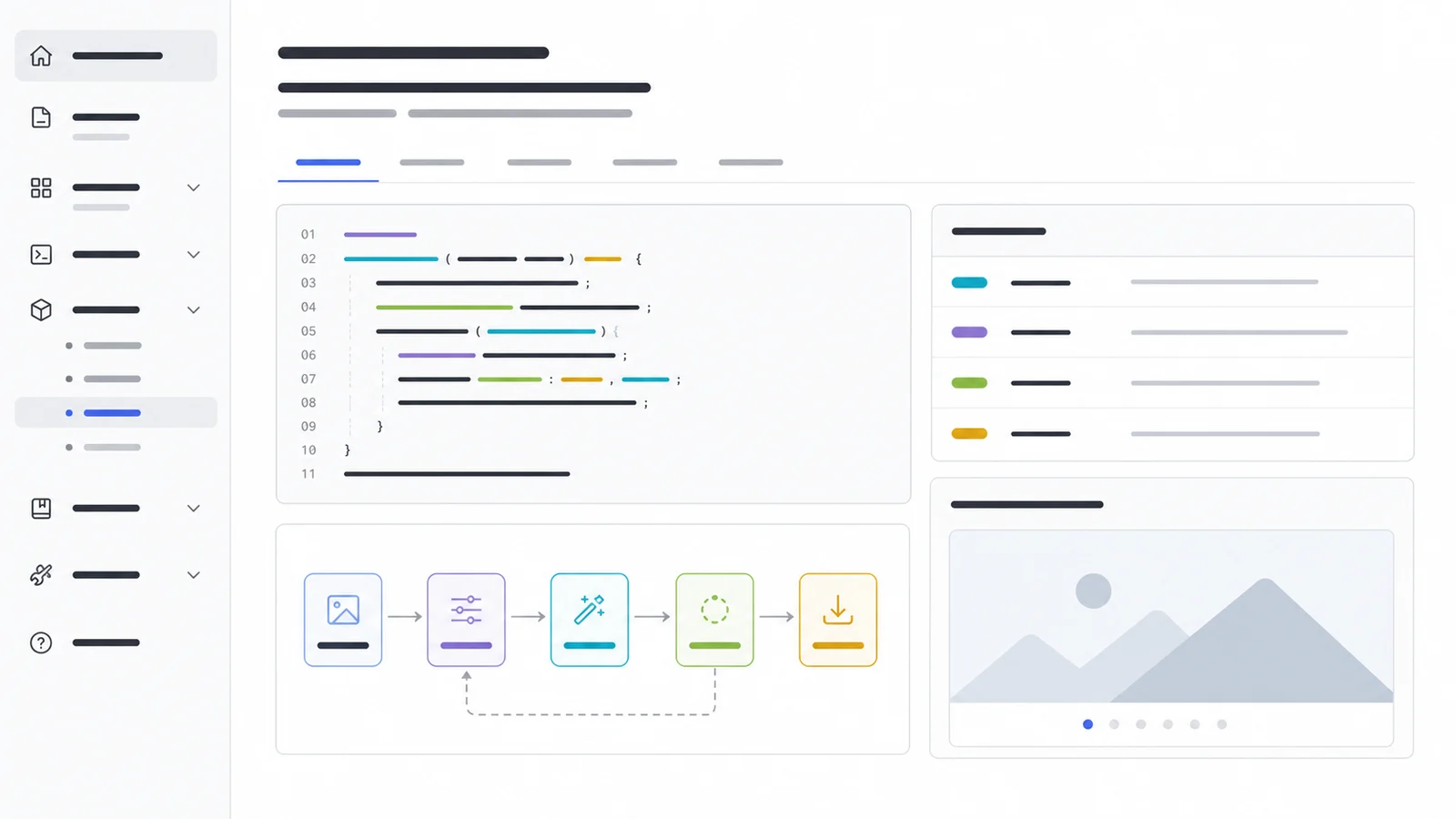
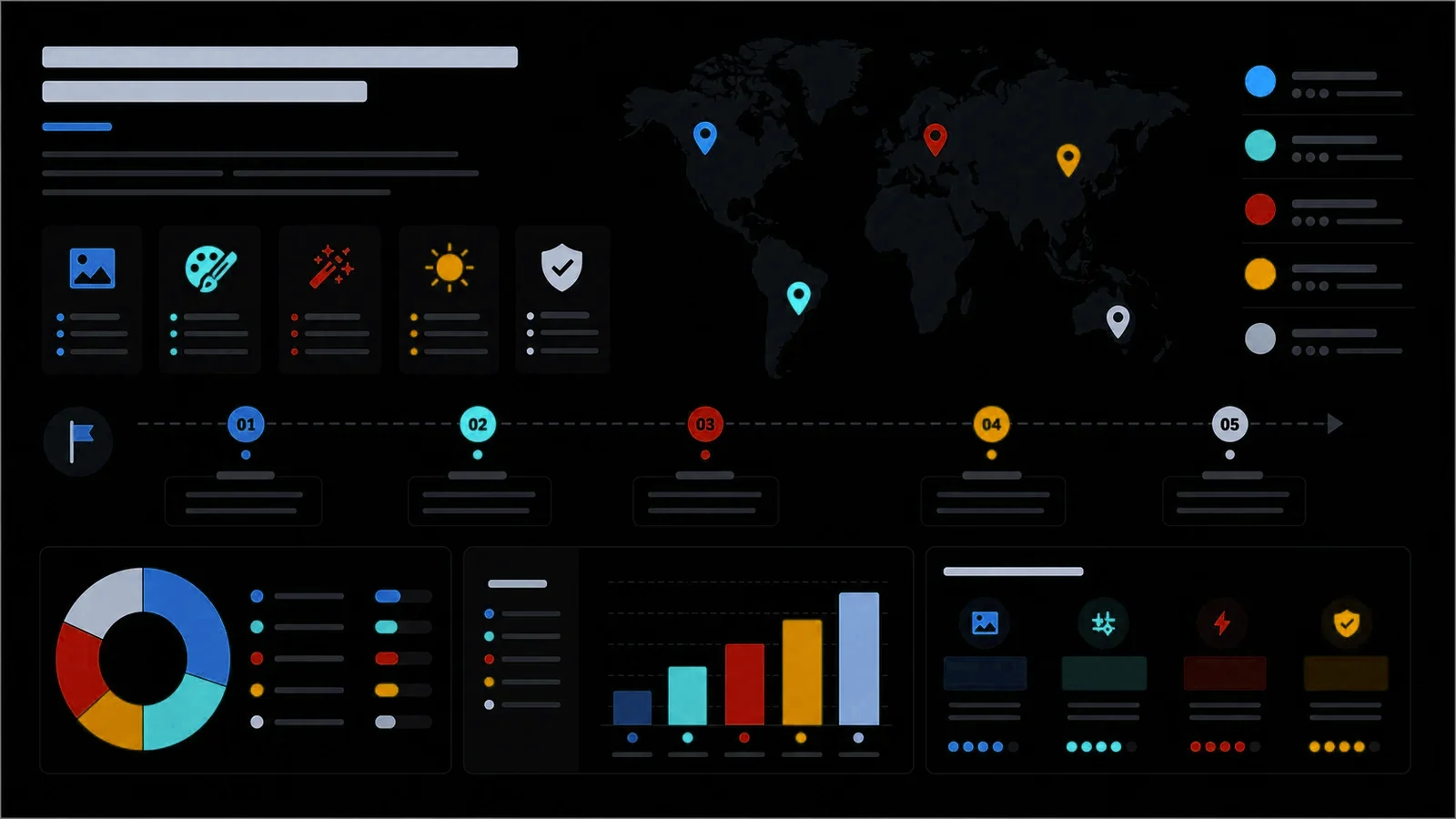
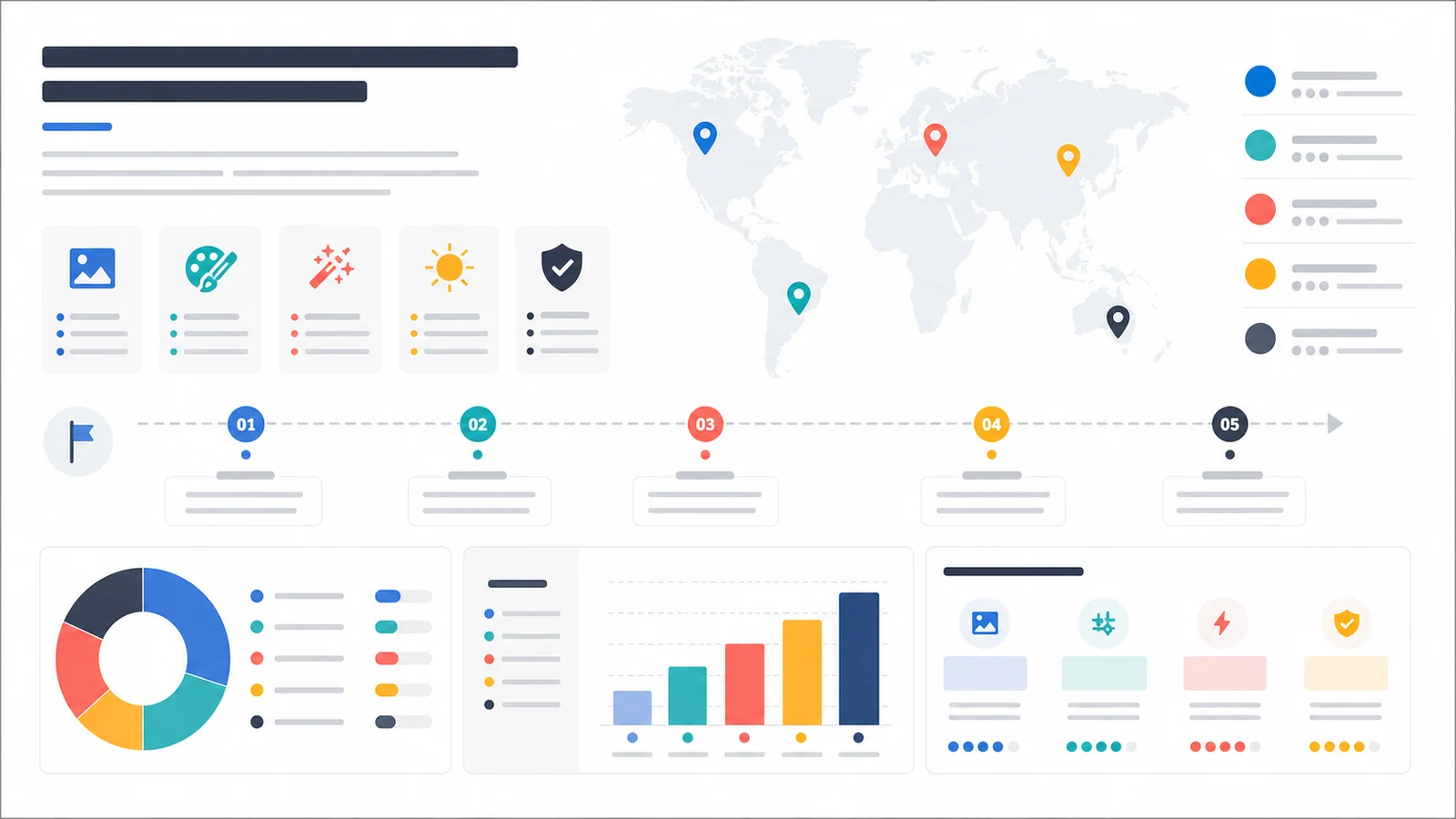
A dark mode image converter adapts a bright screenshot or graphic for a dark interface by reversing perceived lightness while retaining the image's hue and transparency. It is designed for UI assets where a full RGB negative would change every accent to its complementary color.
Lightness Inversion
Turn bright backgrounds dark and dark interface details light by reversing HSL lightness instead of every RGB channel.
Hue Preservation
Keep familiar blue, green, amber, and red accents closer to their original hue while the surrounding tones change.
Readable Contrast
Fine-tune contrast so text, icons, dividers, and charts remain distinct against the new dark background.
Screenshot Preview
Preview documentation, dashboards, diagrams, and interface captures before placing them in a dark-mode layout.
Private Processing
All conversion runs locally with the Canvas API, so private product screenshots are not uploaded for processing.
Flexible Export
Download the converted graphic as PNG, JPG, or WebP while retaining the original pixel dimensions.
Dark Mode Conversion vs Color Inversion
Use this page when a light UI asset needs to work on a dark background without completely changing its accent colors. For an exact RGB negative effect, use the main image inverter. For transparent logos and icons that need complementary colors, use the transparent PNG inverter.
- +Start at 100% strength for white screenshots and documentation
- +Reduce saturation when bright accents feel too intense on black
- +Increase contrast slightly when thin gray lines lose definition
- +Use PNG or WebP when the original graphic includes transparency
- +Check brand colors before publishing converted logos
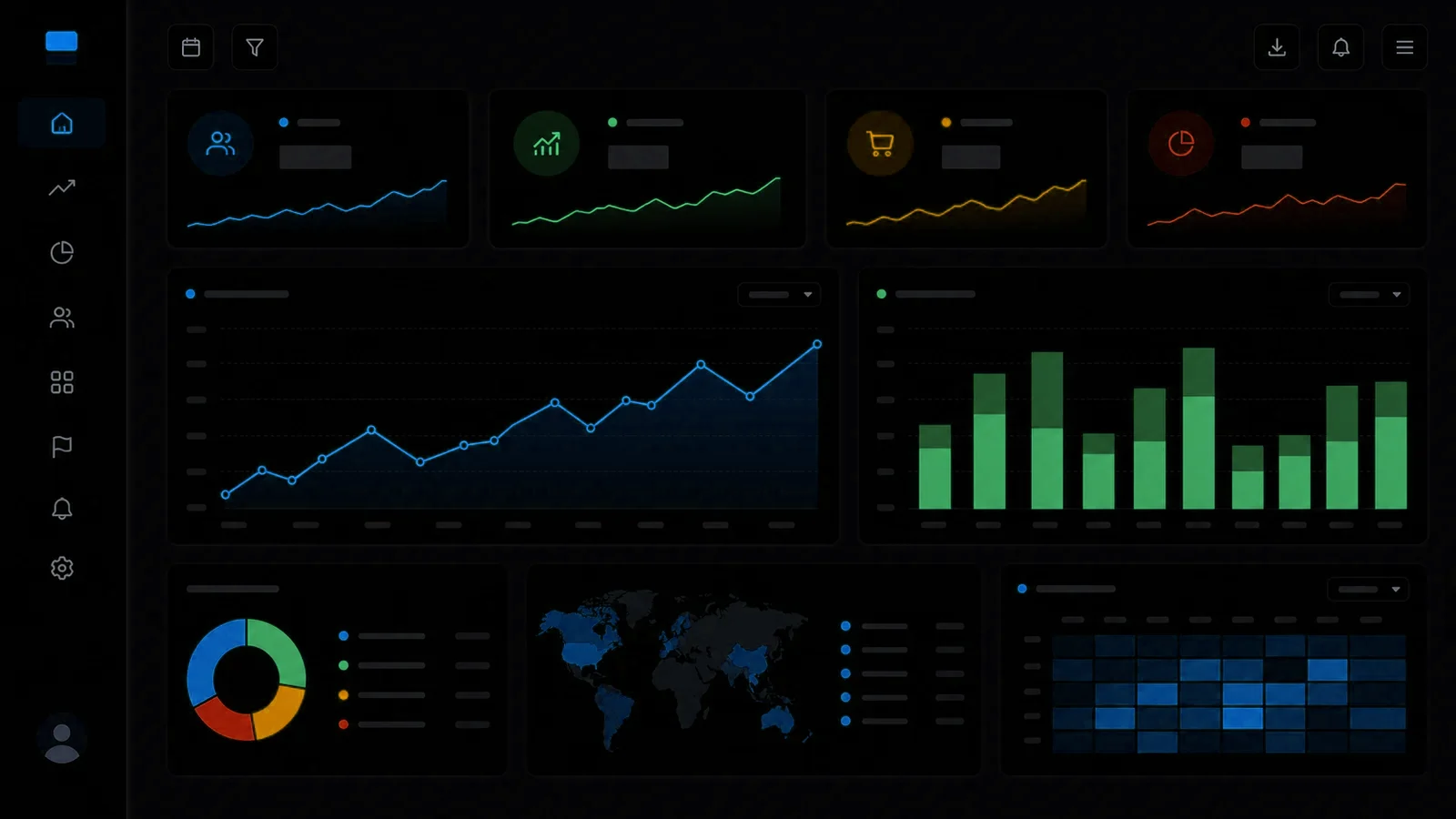
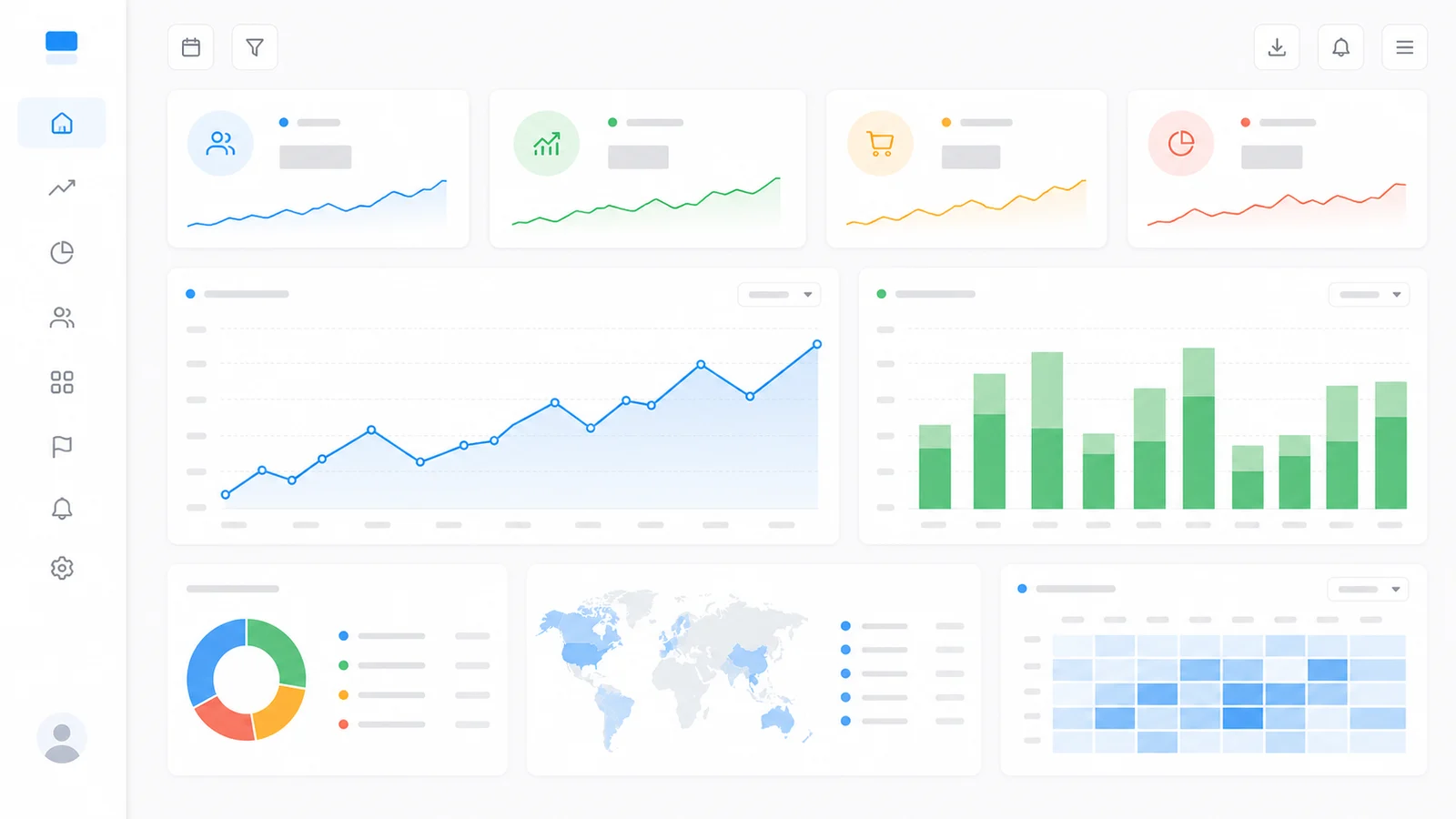
Convert Light Screenshots Without Changing Every Hue
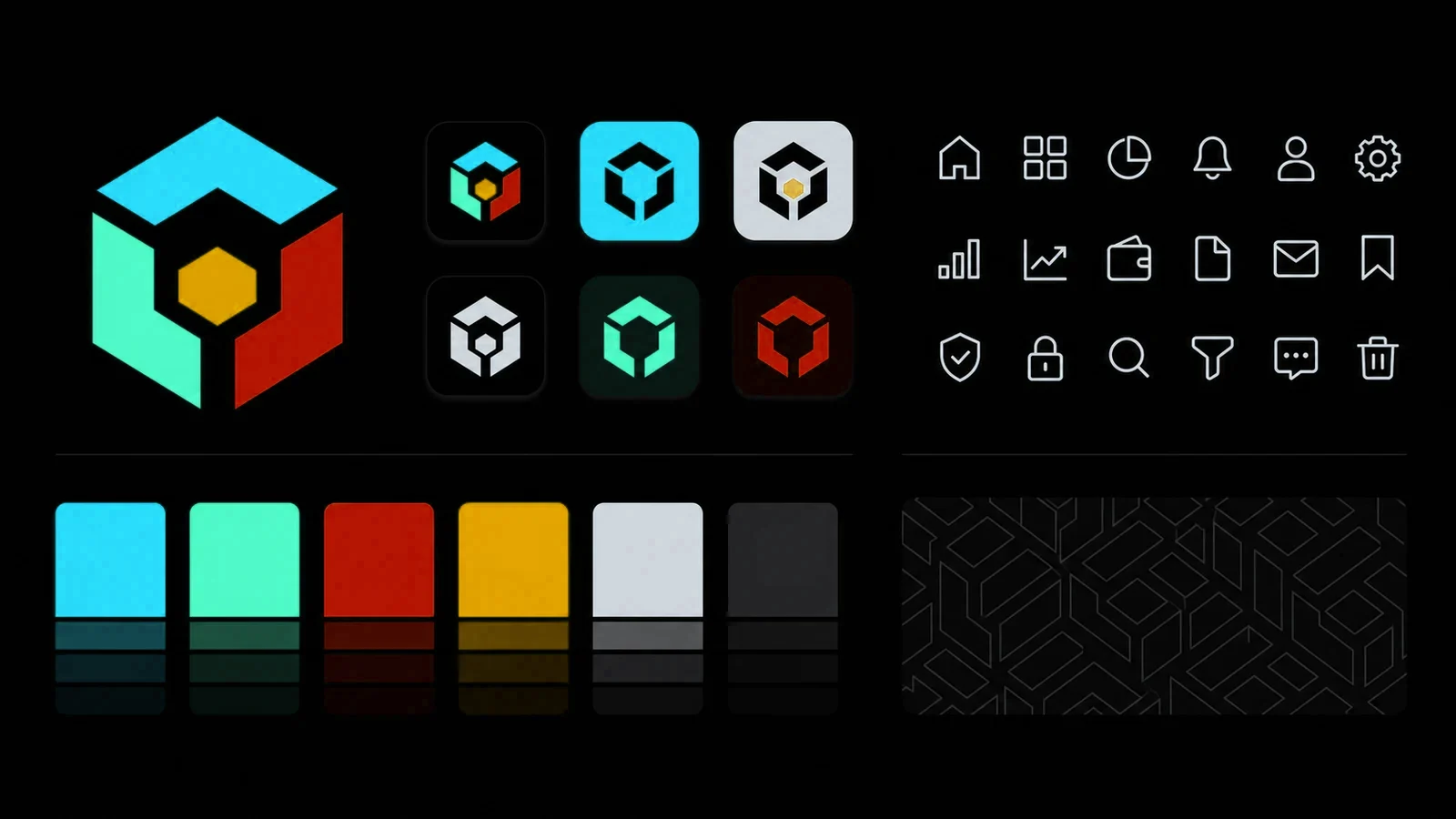
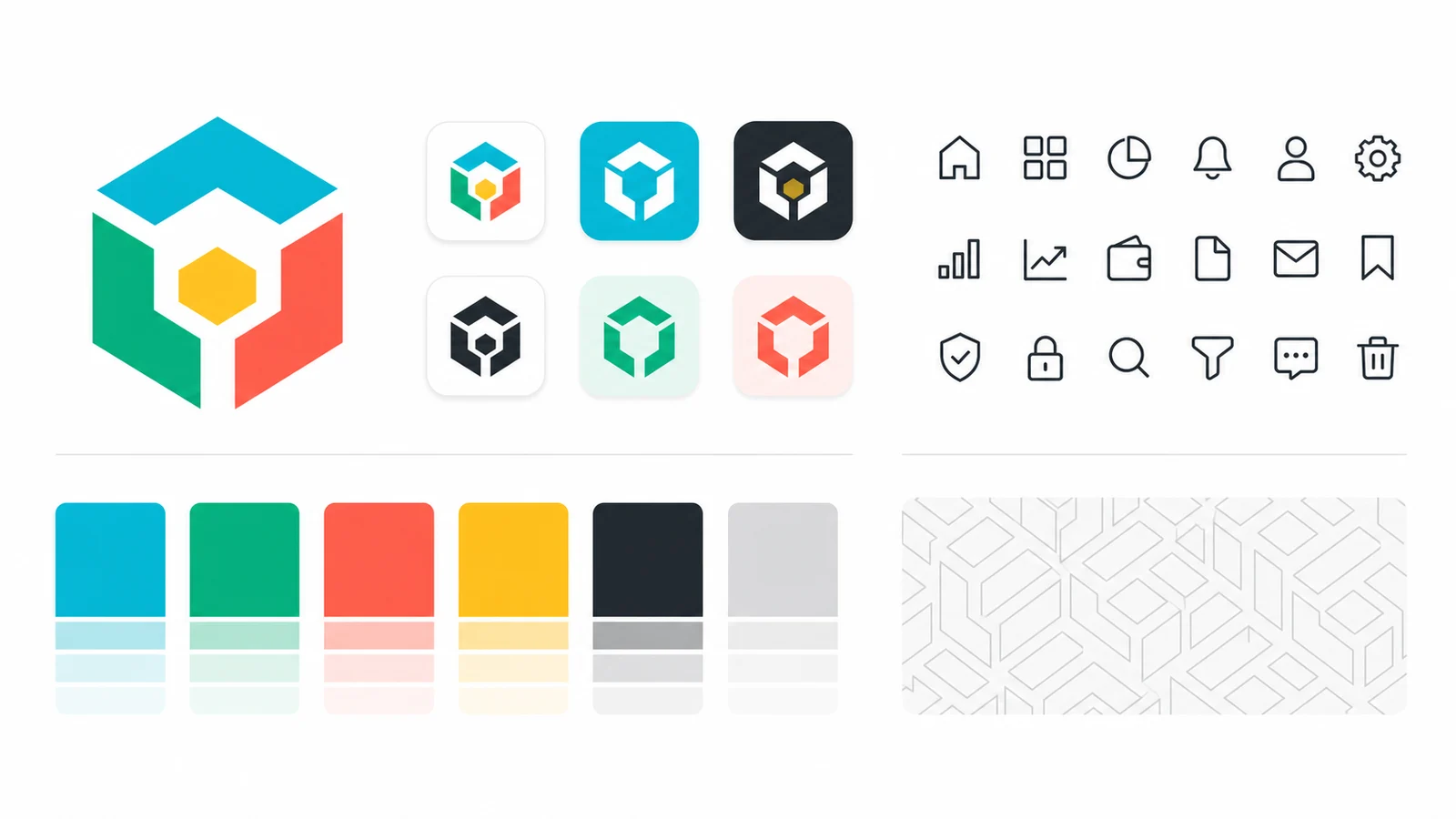
Prepare Logos and Icon Sheets for Dark Backgrounds
Make Documentation and Code Graphics Easier to Embed
Tune Contrast, Saturation, and Export Format
Dark Mode Image Converter FAQ
Learn how to convert screenshots, logos, diagrams, and UI graphics for dark-mode backgrounds.
How do I convert an image to dark mode?
Upload a JPG, PNG, or WebP image. The converter reverses its lightness while retaining hue, then lets you adjust conversion strength, contrast, and saturation before downloading.
How is this different from a normal image inverter?
A normal RGB inverter changes every color to its complement. This tool primarily reverses HSL lightness, so blue, green, red, and other accents stay closer to their original hue.
Can I convert a screenshot for dark mode?
Yes. The tool is designed for light interface screenshots, documentation, dashboards, diagrams, and similar graphics placed inside dark websites or presentations.
Does dark mode conversion preserve PNG transparency?
Yes. Alpha values remain unchanged during processing. Export as PNG or WebP to retain transparent areas; JPG uses a solid background because it does not support transparency.
Will the converter preserve exact brand colors?
It preserves hue more closely than full RGB inversion, but lightness, saturation, and perceived contrast still change. Always review converted brand assets before publishing them.
Are my screenshots uploaded or stored?
No. Pixel processing runs locally in your browser using Canvas API, so your images are not uploaded for conversion.
Convert an Image for Dark Mode
Adapt a bright logo, screenshot, or graphic for dark backgrounds without turning every accent into a complementary color.
Related Inversion and Display Tools
Compare exact inversion, transparent PNG handling, contrast adjustment, and simple image darkening.